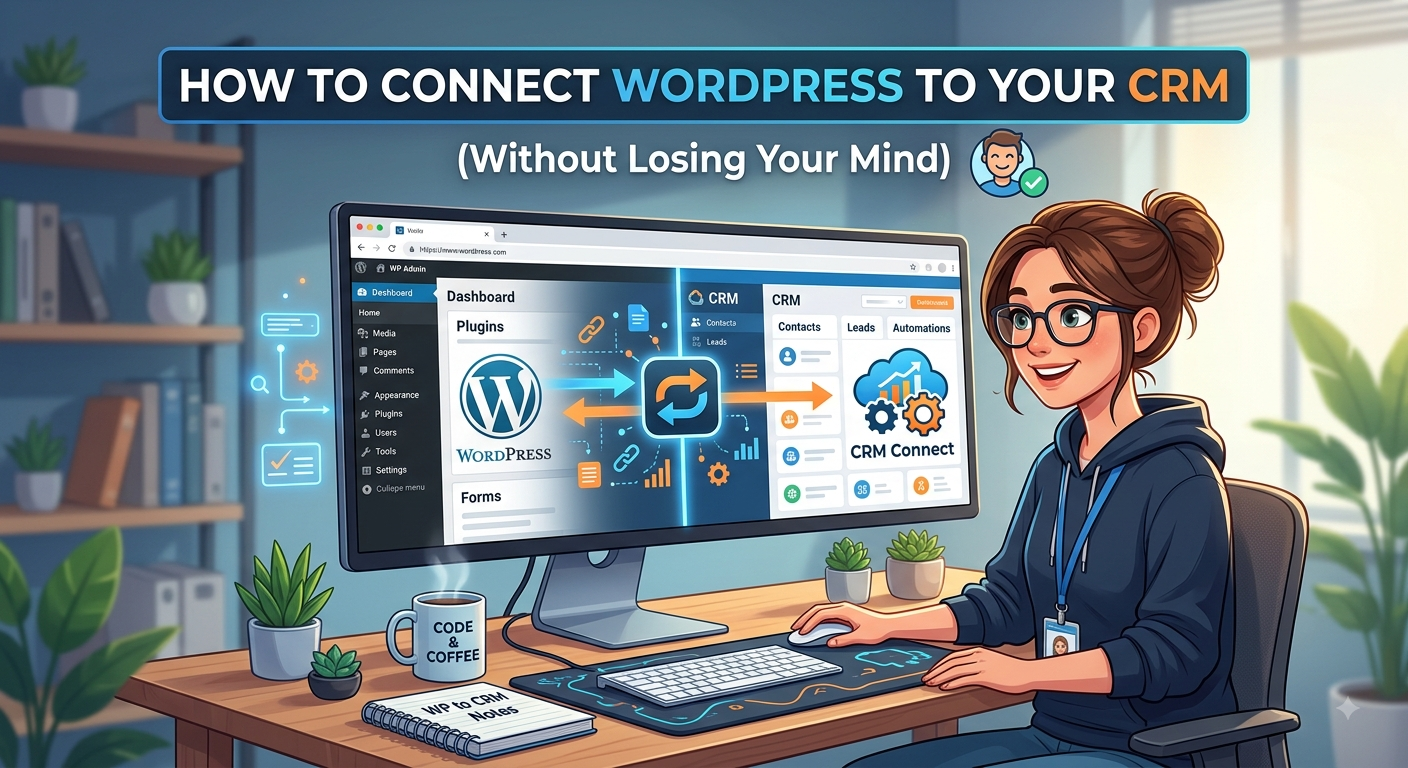
If your website and your CRM aren’t talking to each other, you’re almost certainly losing leads somewhere in between. Someone fills out a contact form, downloads a guide, or signs up for a newsletter on your WordPress site, and if that information doesn’t flow automatically into your CRM, it either sits in an email inbox waiting to be manually entered, or it gets missed entirely. For any business serious about following up with prospects quickly, connecting WordPress to a CRM isn’t a nice-to-have, it’s foundational plumbing. The good news is that this connection has gotten far easier to set up than it used to be, and there are several solid paths depending on your technical comfort level and the CRM you’re using.
Why This Connection Matters More Than It Seems
Speed to lead is one of the most well-documented factors in sales conversion. A lead that gets contacted within minutes of filling out a form converts at a dramatically higher rate than one contacted hours or days later, simply because interest fades fast and competitors are often one search away. When form submissions have to be manually copied from an email notification into a CRM, that delay compounds, and mistakes creep in from manual data entry. An automatic connection removes the delay entirely and ensures the data arriving in your CRM is clean, structured, and immediately actionable by whoever owns the follow-up.
The Three Main Ways to Connect Them
There isn’t one single method for linking WordPress to a CRM, and the right choice depends on how much customization you need and how comfortable you are working with code or third-party tools. Broadly, the options fall into native plugin integrations, middleware automation platforms, and custom API connections, and it’s worth understanding what each one actually involves before picking one.
Native Plugin Integrations
Most major CRMs, including HubSpot, Salesforce, Zoho, and Pipedrive, offer official WordPress plugins designed specifically to bridge the two systems. These plugins typically handle authentication through an API key or OAuth login, and once connected, they let you map WordPress form fields directly to CRM contact fields inside the WordPress dashboard itself. This is usually the fastest path if you’re already using a popular CRM and a common form builder like Gravity Forms, WPForms, or Contact Form 7, since many of these plugins include built-in support for those tools without requiring any code. The tradeoff is flexibility. Native plugins are built for common use cases, so if you need complex conditional logic, multi-step data transformations, or connections to less mainstream CRMs, you’ll likely hit limitations that push you toward a different method.
Middleware Automation Platforms
Tools like Zapier, Make, and n8n sit between WordPress and your CRM, watching for a trigger event on the WordPress side, such as a new form submission, and then pushing that data into the CRM according to rules you define. This approach is popular because it doesn’t require custom development, works with nearly any CRM that has an API, and gives you meaningful control over how data gets transformed and routed along the way. You could, for example, set up logic that sends leads from a demo request form into one CRM pipeline while newsletter signups go into a completely different list, all without writing a line of code. The cost here is usually a subscription fee once you exceed the free tier’s task limits, and there’s a small amount of latency since the automation platform has to detect the trigger and then execute the action, though for most businesses this delay is negligible.
Custom API Integration
For businesses with specific requirements that off-the-shelf plugins and automation platforms can’t satisfy, building a direct connection using the CRM’s API is the most powerful, and most technical, option. This usually means writing custom code, often as a small WordPress plugin or a snippet added to a theme’s functions file, that captures form submissions and sends them directly to the CRM’s API endpoint using authenticated requests. This approach gives complete control over data formatting, error handling, and what happens when a submission succeeds or fails, and it avoids any dependency on a third-party automation platform staying online or maintaining its own integration. It does require a developer, or at least someone comfortable reading API documentation and testing endpoints, and it comes with ongoing maintenance responsibility if the CRM changes its API in the future.
What to Map and What to Watch For
Regardless of which method you choose, the setup process generally follows the same shape. You’ll need to identify every field on your WordPress forms that should sync to the CRM, decide what happens with fields that don’t have an obvious CRM equivalent, and make sure required CRM fields either have a source on the form or a sensible default value, since many CRMs will reject a new contact record that’s missing something they consider mandatory. It’s also worth thinking early about duplicate handling. If the same person fills out two different forms on your site, you want the CRM to update their existing record rather than create a second, conflicting one, and most CRMs offer some form of deduplication based on email address that you’ll want to confirm is actually enabled.
Testing before going live matters more than it might seem. Submit a handful of test entries through every form connected to the integration and confirm the data lands correctly, including checking that dropdown values, checkboxes, and any custom fields map to the right place rather than arriving blank or garbled. It’s also worth setting up basic monitoring or at least periodically checking that submissions are still flowing through, since a WordPress plugin update, a CRM API change, or an expired authentication token can silently break the connection without any obvious warning sign until someone notices leads have stopped appearing.
Choosing the Right Path for Your Business
If you’re running a small to midsize site with a mainstream CRM and standard form needs, a native plugin is usually the fastest and most maintainable choice. If your workflows are more complex, involve multiple tools beyond just the CRM, or you want the flexibility to change routing logic without touching code, a middleware platform like Zapier or Make is worth the subscription cost. And if you have genuinely specific technical requirements, high submission volume, or strict data handling needs that neither option satisfies, investing in a custom API integration will pay off in control and reliability, provided you have the development resources to build and maintain it properly.Whichever route you take, the underlying goal is the same: making sure that no lead generated on your WordPress site ever sits idle because the information didn’t make it to the people who need to act on it.